PsxCad and Siemens PLC communication
This is a guide on how to set up S7 communication with a Siemens PLC in PsxCad.
Setting up S7 communication with Siemens PLC
Go connect a PsxCad to a PLC. The PLC must be configured with PCS7 or TIA portal. this means specifying the IP address of the PsxCad server in the network configuration. The PLC usually has some numbered data blocks that can be communicated with. Another option is to create a separate data block specifically for communication with PsxCad, communication can be set up somewhat easier that way. A data block contains a number of tags. It is more convenient to first set up the data blocks before setting up communication with PsxCad. Changes made later in these data blocks also mean changes in the communication with PsxCad.
Addressing in Siemens PLC
The order, number and type of tags determine the size of and addressing within the data block. Siemens has its own structure for this. Basically, each address is such that a data block is filled with one byte (8 bits). Siemens then sets up the address structure so that the addresses add up in pairs.
If you only use a part of the two pairs of bytes with booleans, the two bytes are still reserved. The booleans then get a address where a dot is used to separate an extra number that shows which of the 0 to 7 bits within the byte are filled with data of the boolean. Two bytes are reserved for integers (or words) and four bytes for a real (used as double in PsxCad). This is taken into account in addressing the tags. See Figure 1.
All tags in the PLC have a tag address with the first part refers to which data block it is in and separated by a period the second part indicates at which address the tag’s data is stored within this data block. For the reference to the data block we use DBxx, replacing xx with the number of the data block. The second section also starts with "DB" followed by a letter that shows the tag type. And finally followed by the addressing system in a data block explained before. See Table 1 below for an overview of addressing for different data types. For booleans you have an addressing system with a dot in it with an extra number, so that this can be used to indicate yet another bit (from 0 to 7) within the byte.
| Datatype | Address |
|---|---|
Boolean |
DB00.DBX0.0 |
Integer |
DB00.DBW0 |
Float |
DB00.DBD0 |
Below is an example of a data block in PCS7. Note the size of the data block shown at the bottom. A data block in Tia Portal will look similar.

Referring PLC addresses in PsxCad
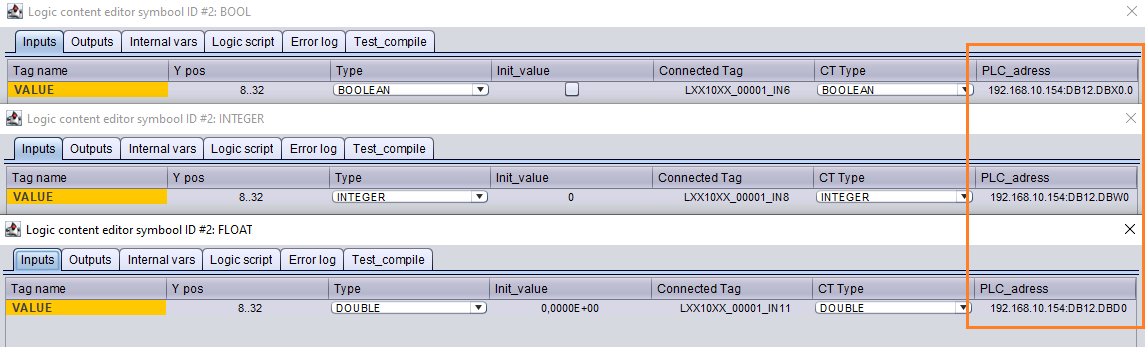
From PsxCad, a PLC address will need to be specified in the logic content with each tag that communicates with the PLC. Usually this is done in an IN or OUT symbol. This PLC address consists of the IP address of the PLC combined with the absolute address within the PLC separated by a ":". Below is an abbreviated summary:
{IP address of PLC}:DB{DB number}:DB{datatype}{absolute address}{starting bit}
See a practical example in the figure below.
Specifying datablock size
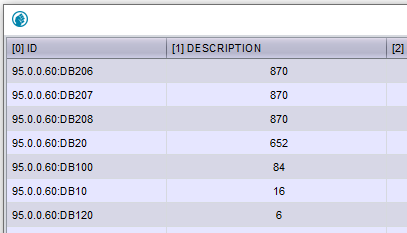
Before connecting to the PLC, you must specify the size(length) of the data block for each data block you want to communication with. In PsxCad, you do this by creating additional tags in the database with the combination of the IP address and datablock reference ("DB" followed by the number of the data block) separated by a ":" as the ID tag.
Up next, one specifies the size of the datablock in the description column. The size of the datablock is usually displayed at the bottom of the datablock. See Figure 1, in this example it is 92.
To access the database go to the menu and then Edit → Database in your menubar, this will open the database. In the database the ID will be under column [0] and the description under column [1]. At the bottom under choose action you can choose "Insert new row" and execute. See the figure below for an example.