Search and Replace tool
Background
The Search and Replace tool is a fast, easy to use utility to perform search and replace operations across multiple fields, including (but not limited to) text fields, ID-tags, colors and default values. When using the right combination of options, this tool allows for replacement of values only when specific conditions are met, and might therefore save you tons of time by avoiding unnecessary manual work. This How-to guide will help you understand how to use this tool and get the most out of it.
Several examples are provided of situations in which using the tool can be useful:
Window overview
You can utilize the Search and Replace tool in several ways:
-
Using the Alt + R key combination.
-
Right click on any sheet, then select .
-
If you want to apply replacements only to a specific symbol, utilize the Search and Replace tool while hovering your mouse of that symbol and activate the 'Use on symbol type only' checkbox.
The Search and Replace tool appears as a separate on-top window (Figure 1).
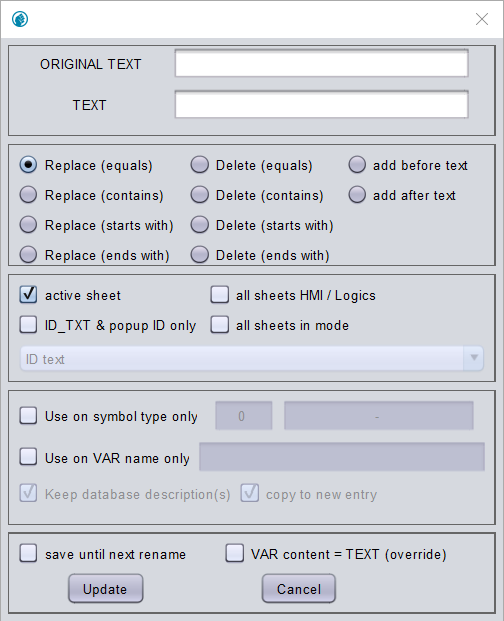
The interface includes several text-based fields, checkboxes and drop-down lists. All options are explained in Table 1. Combinations of two or more options are discussed in the next section. Some examples will be provided there as well.
Option |
Description |
Original text |
The value you want to replace, delete or add text in front of/after (depending on the selected checkbox). |
Text |
The new value or to be added text in front of/after the original text (depending on the selected checkbox) |
Checkboxes (rounded) |
Choose to replace (a part of) a text, delete (a part of) a text, or add more text either in front of or after existing text. See Replace options below. |
Active sheet |
Apply replacement to all occurrences on the active sheet only. |
All Sheets HMI/Logics |
Apply replacement on all sheets regardless of active mode (i.e. all sheets in editor, logic and cadre mode). |
ID_TXT & popup ID only |
Apply replacement to the value of a specific field present in the ID-text or popup window (Figure 2-3). When activated a drop-down list appears. Select the option on which you want to apply the replace function. |
All sheets in mode |
Apply replacement on all sheets in the current mode (i.e. all sheets in editor OR logic OR cadre mode) |
Use on symbol type only |
It is possible to apply replacements only to symbols of a particular type. When utilizing the tool while hovering your mouse over a symbol on your sheet, the symbol-name and corresponding symbol-number will appear behind the 'Use on symbol type only' checkbox. When you activate this checkbox, text replacement will only be applied to symbols of this specific type. |
Use on VAR name only |
Apply replacement to values of specific variables. For example: change default value from 5 to 10 for all variables equal to CV_value. |
Keep database description(s) |
… |
Copy to new entry |
… |
Save until next rename |
Remembers your current settings |
VAR content = TEXT override |
Replaces the current value with the new value regardless of the current value. When this option is selected, Original text is not used. |
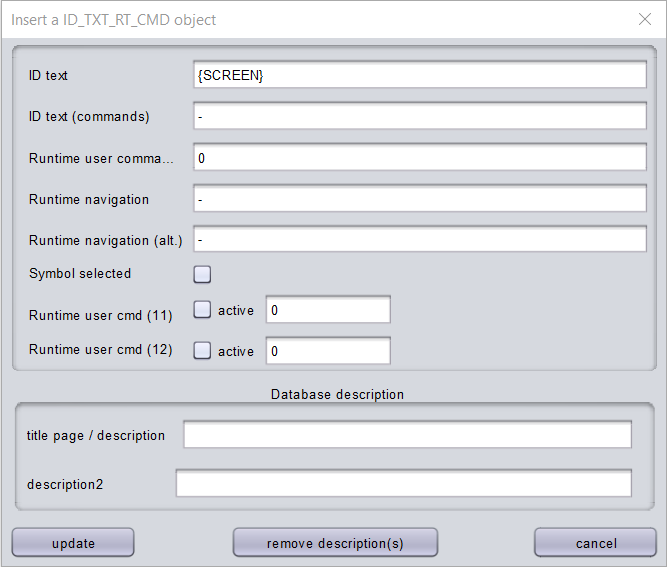
Figure 2. ID-text window
|
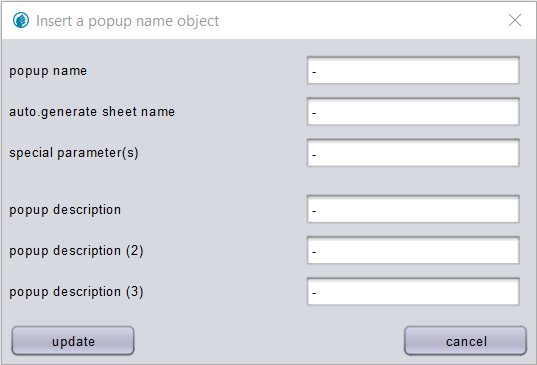
Figure 3. Popup window
|
Replace options
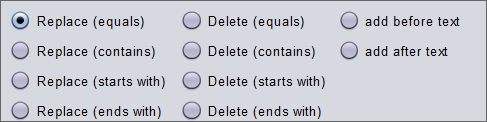
You can choose whether you want to replace (a part of) a text, delete (a part of) a text, or add more text either in front of or after existing text by selecting one of the checkboxes (Figure 4). These options are explained in Table 2.
Option |
Description |
Replace (equals) |
Replace all words/values identical to Original text with New text (i.e. whole words/values only). |
Replace (contains) |
If a word/value contains Original text, replace Original text with New text (regardless of the position of Original text in the whole word/value). |
Replace (starts with) |
Replace Original text with New text only when Original text is positioned at the beginning of a word/value. |
Replace (ends with) |
Replace Original text with New text only when Original text is positioned at the end of a word/value. |
Delete (equals) |
Delete all words/values identical to Original text with New text (i.e. whole words/values only). |
Delete (contains) |
If a word/value contains Original text, delete Original text from the whole word/value (regardless of the position of Original text in the whole word/value). |
Delete (starts with) |
Delete Original text from the whole world/value only when Original text is positioned at the beginning of a word/value. |
Delete (ends with) |
Delete Original text from the whole world/value only when Original text is positioned at the end of a word/value. |
Add before text |
Add New text in front of Original text. |
Add after text |
Add New text after Original text. |
| Replacing, deleting or adding text is not limited to words or letters. It will work with all characters, including numbers. |
| It may be necessary to refresh your sheet before changes become visible. |
Examples
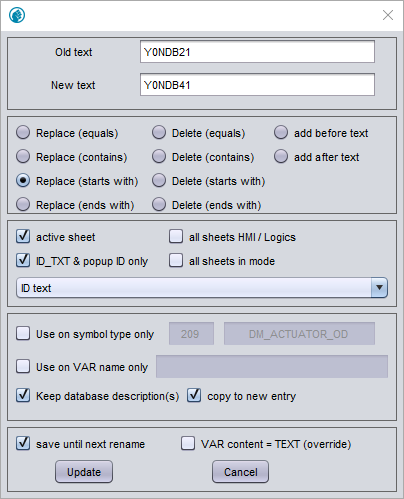
Example 1. Badge rename symbol IDs
You could duplicate screen 1 and rename the ID of all symbols individually. A second less time consuming methode involves using the Search and Replace tool.
Steps:
-
Right click on a sheet in the sheet navigation tree > Copy sheet > Enter new sheet name
-
Navigate to the new sheet
-
Open the Search and Replace tool
-
Use the settings as shown in Figure 5
-
(Optional) Select Save until next rename
-
Click Update
Example 2. Change boolean default
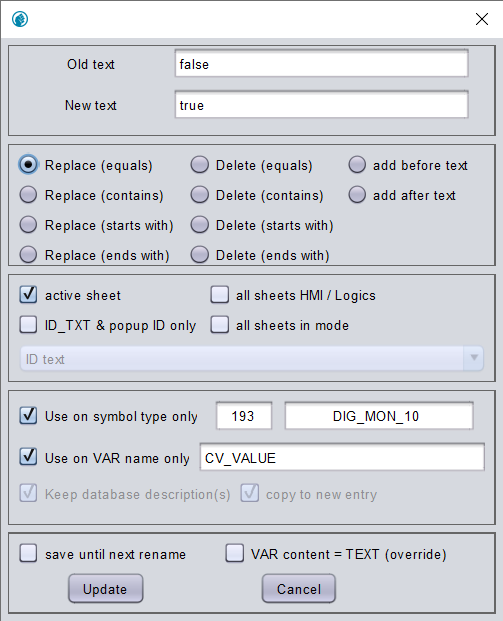
Another useful application of the tool is to convert a default from false ( ) to true (
 ) or vice versa.
Suppose you want to change the default value of the variabele CV_VALUE from true to false in all symbols named DIG_MON_10. Follow these steps:
-
Open the Search and Replace tool
-
Use the settings as shown in Figure 6
-
(Optional) Select Save until next rename
-
Click Update
Example 3. Change colors
|
Only use this tool to change colors in the following situations:
In any other case, it is easier to change the default color in the Color Table. |