Basic symbols
This page provides an explanation of each basic symbol in PsxCad, as well as its usage. The basic symbols are a fundamental set of symbols that serve as the building blocks for creating any symbol. When inserting a new symbol in the symbol editor, PsxCad presents you with a variety of options to choose from, including these basic symbols.
Basic symbols
Line
The line is an important symbol for graphic interfaces. Unlike the signal line for logical features, there are no logic functionalities behind this symbol. It is a line meant for graphical interfaces. The line can be adjusted in width, colouring, dash-lining, anti-aliasing (AA) and visibility.
Signal Line

The signal line is indispensable in any logic applications. This line has special logic features for connecting logic blocks to each other. It can be connected to an input and multiple outputs. Depending on the gridsize of your project PsxCad decides if the signal line is connected to a logic symbol.
This symbol has multiple short-keys to conjure it in multiple ways. The most common is the L short-key to summon the line to your cursor for a free editable mode. Then there are the sort-keys H and W for adding horizontal or vertical connections respectively. The signal line will change its appearance depending on the datatype and connections. See figure 1 for futher explanation on this part.
The signal line can be inverted if used as a boolean with the short-key Shift I or adjusting the "INVERT" property in the symbol parameters.
| Refer to Data types for more information on the various data types used in PsxCad. |
Polygon
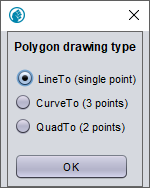
The polygon makes any variant of a figure possible, because it allows you to draw multiple lines in multiple ways. When you start drawing the polygon, a selection window will pop up giving three options to choose from.
-
LineTo : drawing straight lines
-
CurveTo : drawing cubic curve lines (Curves between 4 points)
-
QuadTo : drawing quadratic curve lines (Curves between 3 points)
After choosing an option you are able to draw as many lines you want with the left mouse button.
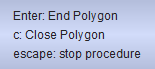
To finish drawing, use the right mouse button or either of the short-keys C or enter. Using the right mouse button will open a dropdown menu with the same short-keys, in which you are able to choose between ending or closing the polygon. Selecting closing the polygon will draw one final line between the start and end point to close the loop, while ending the polygon will stop the drawing at the location of the cursor, leaving it open.
The polygon saves its figure within an array, which is adjustable in the symbol parameters for more refinement. Here you are able to set the polygon as a surface or outlined surface with the parameter 'type'. Furthermore, you are able to adjust the line and surface colours, dash-lining, line width, anti-aliasing (AA), visibility and yet again the open or closed polygon option.
Quadcurve

The quadcurve symbol is the same as the quadratic curve function of the polygon symbol. The difference is in the way it’s drawn. To draw with this symbol hold, the left mouse button to draw a line. Releasing the left mouse button will enable you to bend the drawn line with the mouse cursor. Press the mouse button again to finalize the drawing of this symbol. Furthermore, you are able to adjust the availability of the outer-line and surface, line and surface colours, dash-lining, line width, anti-aliasing (AA), visibility and more in the symbol parameters window.
Rectangle
The rectangle does not require any special drawing actions. You can drop it on the screen and adjust its sizes with the short-key F or in the symbol parameters window. Furthermore, you are able to adjust the availability of the outer-line and surface, line and surface colours, dash-lining, line width, anti-aliasing (AA), visibility and more in the symbol parameters window.
Arc2d

Just like the rectangle, you can drop the Arc2d symbol on the screen and adjust its sizes with the F key or with the symbol parameters. You are able to change the angle of the arc and how it closes the symbol in the symbol parameters. The types of closure are closing through the center, between the start and end point or no closure line at all. Furthermore, you are able to adjust the availability of the outer-line and surface, line and surface colours, dash-lining, line width, anti-aliasing (AA), visibility and more in the symbol parameters window.
Elipse2d

You can drop the Elipse2d symbol on the screen and adjust its sizes with the F key or with the symbol parameters. Furthermore, you are able to adjust the availability of the outer-line and surface, line and surface colours, dash-lining, line width, anti-aliasing (AA), visibility and more in the symbol parameters window.
Text
Drop the text symbol on the screen and go through it’s symbol parameters for adjustment of its actual text, font, style (as in bold or curved), sizes, colouring, anti-aliasing and visibility. It is possible to change its format with a value. See table 1 for what format each value refers to. MyFormatter (MyF) refers to the custom formatter option, where you can configure your own format.
| Ref nr | Text format | Ref nr | Text format |
|---|---|---|---|
0 |
normal |
1 |
special characters |
2 |
myFormatter |
3 |
STD-time |
4 |
hh:mm:ss |
5 |
mm:ss |
6 |
ss |
7 |
dd |
8 |
hh |
9 |
mm |
10 |
ss |
11 |
centr.X |
12 |
centr.Y |
13 |
centr.XY |
14 |
centr.X myF |
15 |
centr.Y myF |
16 |
centr.XY myF |
17 |
right.X |
Picture
By default, when adding a picture symbol on the screen, PsxCad refers to a picture, build into PsxCad, within the following directory: /plaatjes/duologo.png
An image can be loaded into the project by changing the reference to the file directory with the file name and extension. Start with ".." before the file directory to let psxcad know it had to look within it’s own project map. Here a forwardslash (/) needs to be used instead of a backslash (\) between the map and file names. So it won’t be possible to copy and paste the directory from file explorer without adjustments.
A fast way to change the slashes is to copy the directory from file explorer into an internet browser. The internet browser will correct the slashes automatically and you can copy the part you need without "file:///" and paste it into the file name parameter of the picture symbol in PsxCad. PsxCad won’t correct on picture resolution, so you will have to adjust them manualy with the symbol parameters 'dX' and 'dY'.
../images/example.png |