Introduction to typicals
What is a typical?
A typical is a special type of symbol, that is generated from a typical page. These typical pages use logic content for the generation of typicals within the symbol library, thus allowing quick copying, sharing and implementation of logic content within both your own project, as well as somebody else’s.
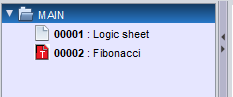
Typical pages are indicated by their red icon within the logic page overview tree. An example is given in the following image.
How do I create a typical?
A typical page is created as any logic page, with a few added steps. Once the logic page is created, you add the symbols FX_IN and FX_OUT as respective inputs and outputs for the symbol creation. If you already have IN and OUT symbols you wish to use as inputs and outputs for the symbol generated from the typical page, you can replace them with FX_IN and FX_OUT symbols respectively. IN and OUT symbols will become internal variables in the symbol after generation.
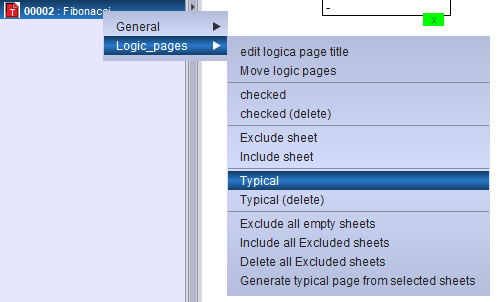
After this, you can right click on the logic page within the logic page tree and select from the logic_pages menu the "Typical" option. This changes the current logic page to a typical page. To revert this change, simply select "Typical (delete)" from the same menu.
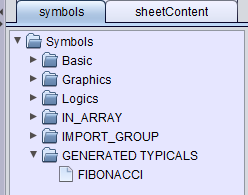
When wanting to create a typical from the typical page, go to the "Tools" menu at the top of the page and select "Generate typical blocks". This will give you a prompt allowing you to select the width of the symbol to be created. After accepting, the created symbol will be added to your symbol library, within the map "GENERATED TYPICALS".
How do I use typicals?
Typicals in general are used to add multiples of the same complex logic into a simulation without taking up multiple pages. This is easily explained by taking equations as an example. If you only have to solve an equation once, you can write it out on a logic page. But if the equation needs to be solved multiple times and/or for multiple variables, then it’s more efficient to write the equation once on a typical page and generate a typical from it, than to write it out multiple times on logic pages. An example of this is given in the images below.
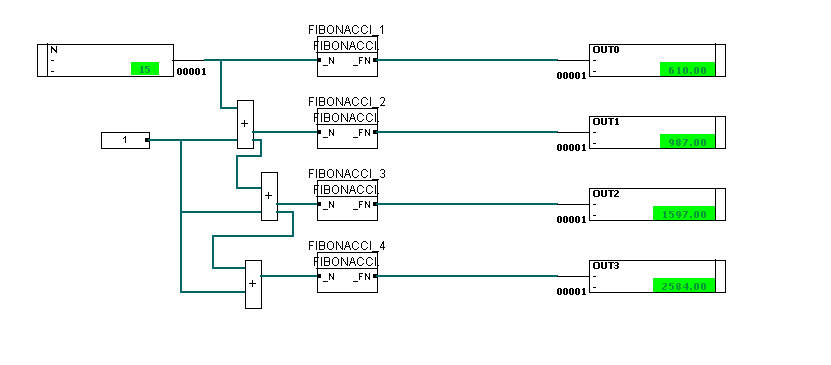
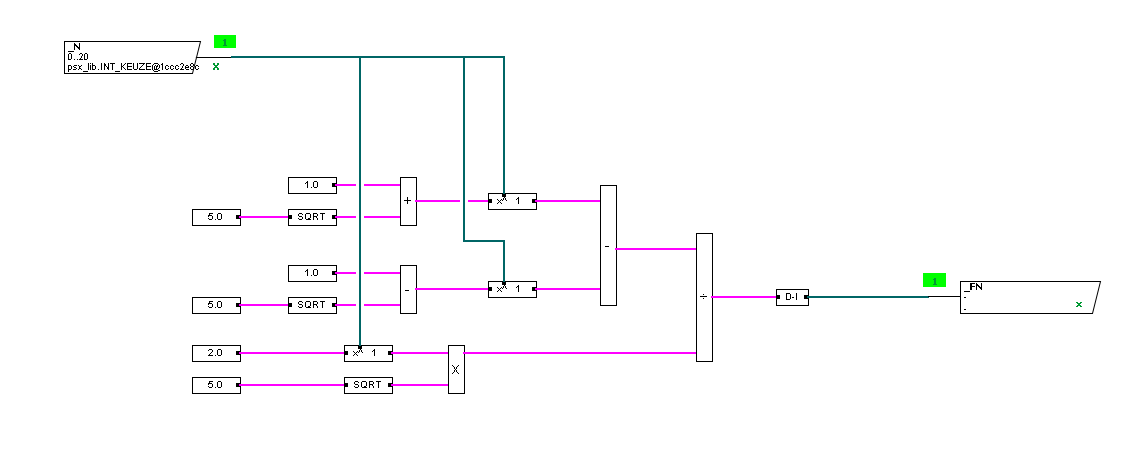
Examples of this in the field could be the logic behind a valve or motor, something that can logically be used multiple times within the same project, while being quite complex on their own. These logic pages are then transformed into typical pages, from which new typicals can be created. These typicals are then used instead of the pages to drive the logic behind the valve or motor and can be imported into future projects to skip the step of creating the same logic over and over again.
FAQ
Is the typical limited to just logics?
Anything that can be written on a logic-page can be used within a typical. This includes proces model symbols. This does mean that HMI screens and Cadre screens cannot be used as typicals.
I made a mistake when creating the typical symbol, what do I do?
Do not panic. When you fix your mistake, you can re-generate the typical symbol. This will overwrite the previous symbol.
What is the difference between regular symbols and typicals?
From a functionality standpoint, there is none. The biggest difference between a symbol that was coded and one that was generated from a typical is seen in how the code was generated and the names of variables.
|
Please take note that typicals don’t visually change when changing their size within a logic page. This is due to the generated symbol not having the code required for it to scale itself visually. It does functionally change size. |
How do I look at the typical page in runtime?
A typical page will not run during runtime. To see it running, you have to left-click on a typical symbol generated from the typical page. This will open a popup with the typical page in runtime.
The typical page won’t open in runtime, what do I do?
If it won’t open the popup in runtime, then there might be something wrong with the name settings of the symbol. Press G above the symbol and check the following:
-
Does the field ID text contain the name of the symbol?
-
Does the field ID text (commands) contain the following: &KEY&248 ?
-
Is the field popup name empty (contains: -)?
-
Does the field auto.generate sheet name contain TYPICAL#pagenumber#
Change it so every question answers true. If it still won’t open in runtime, contact our helpdesk.