Installing PsxCad

This article will guide you through the process of downloading and installing PsxCad on a Windows machine. It also provides steps to activate your license.
System requirements
PsxCad is a Java-based application, however, it does not require Java to be installed on your system. We provide an installer for the 64-bit version of Microsoft Windows and a zip-file for manual installation.
|
If you want PsxCad to work on Linux or Mac, please contact the helpdesk. |
PsxCad itself will run without problems on most laptops or PCs. Recommended system requirements highly depend on the size of your project. We suggest aiming for minimum system requirements as listed in Table 1.
Operating System |
Microsoft® Windows® 10 or 11, preferably 64-bit |
Processor |
1 GHz; 64-bit support |
Memory (RAM) |
4 GB |
Display Resolution |
High definition (e.g., 1920 x 1080 or 1920 x 1200) [2] |
Display Card |
No minimum requirements [3] |
Network |
Ethernet connection (LAN) or a wireless adapter (Wi-Fi) [4] |
[1] Highly depends on the size of your project. |
|
Installation
There are two different ways to install PsxCad on your Windows operating system. You can either install it using an installer file (.exe) or manually by copying a number of folders to a specific location on your system. Both options are further described below, although we recommend installing PsxCad using the installer.
|
Installation using the PsxCad installer (.exe file)
Step 1: Download the PsxCad.exe file.
Step 2: Go to your Downloads folder and double-click on PsxCad.exe to execute the setup file wizard.
Step 3: Click on Next
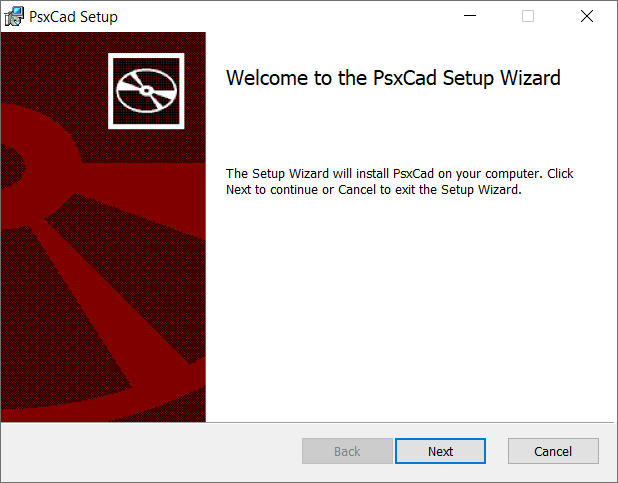
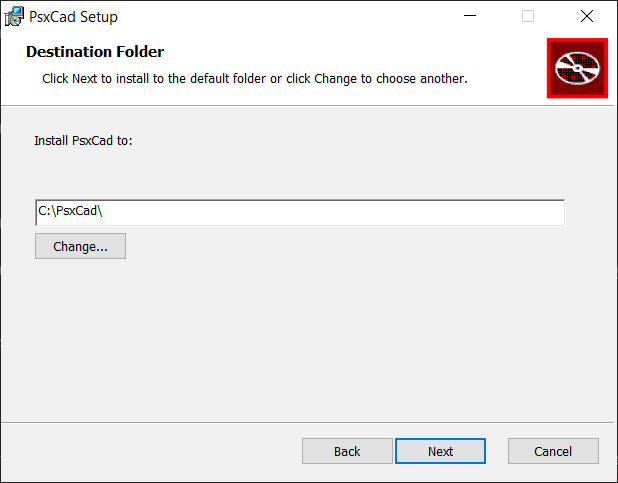
Step 4: Select the installation folder and click on Next. Make sure to choose a destination folder without spaces (e.g., C:\PsxCad\)
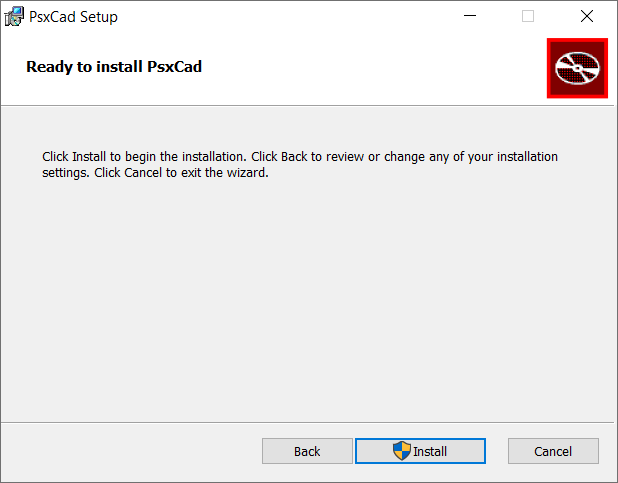
Step 5: Click on Install. This step might require administrator rights depending on the installation path.
(e.g. C:\PsxCad\ requires administrator rights)
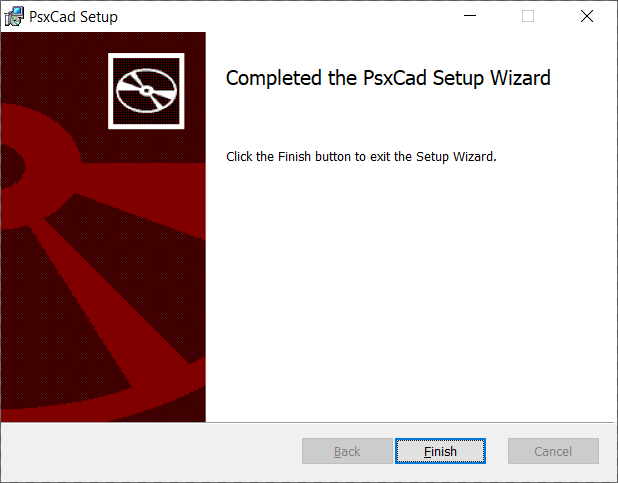
Step 6: Once complete, click on Finish.
Step 7: A program shortcut appears on your desktop.

Manual installation (.zip file)
Step 1: Download the PsxCad.zip file.
Step 2: Go to your Downloads and right-click on PsxCad.zip, then and select (C:) in the left pane.
Step 3: Open a new Explorer window and browse to C:\PsxCad\.
Step 4: Right-click on PsxCad.exe, and then click . A program shortcut appears on your desktop.
License
After launch, PsxCad will start in demo-mode with limited functionality. Follow the instructions below to request a license key and activate PsxCad.
Step 1: Launch PsxCad by double-clicking the shortcut on your desktop. A warning saying you are in demo-mode will appear. Click OK.
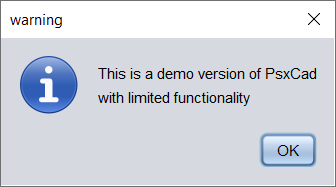
Step 2: Go to . A new window appears containing several unique parameters.
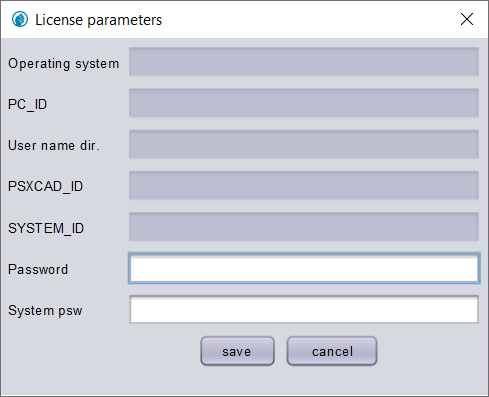
Step 3: Make a print-screen of this window.
Step 4: Email this print-screen to the helpdesk. Use 'PsxCad license' as email subject.
Step 5: You will receive a reply with a unique Password and System psw as soon as possible.
Step 6: Repeat step 2.
Step 7: Fill in your unique parameters to Password and System psw and click Save.
Step 8: Restart PsxCad. Activation was successful if you do not get the demo-mode warning.
|
If you do get the demo-mode warning after activation, please verify that your your Password and System psw are correct. In case they are please contact the helpdesk for support. |
Uninstall PsxCad
When installed using the installer (.exe):
Step 1: On the Start menu (Windows), click .
Step 2: In Control Panel, double-click Programs and Features.
Step 3: Right-click PsxCad and select Uninstall. Then follow the directions on the screen.
When installed manually (.zip):
Delete C:\PsxCad\. We do not store files in any other location.